Course Tools Registration
In this document, you’ll find information on how to register for tools we’ll use in this course. I’ll guide you through getting set up with Piazza, PrairieLearn, and zyBooks.
Piazza
We’ll use Piazza for class discussions and questions. To join our Piazza class:
- Go to piazza.com(opens in new tab).
- Click “Sign Up” in the upper right corner.
- Create an account using your @umich.edu email address. For your username for the account, please make sure you write “full name (uniqname)”. For example, I would write “Steven Bogaerts (bogaerts)”. This will help us know who you are and let us look up a related account (e.g., in PrairieLearn) if needed.
- Join our class using this link: https://piazza.com/umich/fall2026/eecs183python.
Did the above not work? Some students report getting an error message saying that they can only be enrolled via LMS. LMS means “Learning Management System” - Canvas, in our case. So, try logging into the course Canvas page, and look for the Piazza link in the left-hand menu. Click that link, and it should take you to our Piazza site and automatically enroll you. After you do this once, you should be able to use the direct Piazza link in the future.
PrairieLearn
We will use the PrairieLearn platform for lots of assigned practice problems, and also for in-class exercises. To sign up for PrairieLearn, follow the instructions below. Note that after signing in, you’ll need to come back to step 5 here to click on a different link.
- Go to our PrairieLearn assessments page.
- Do not “Sign in with Google” nor “Sign in with Microsoft”. Rather, click the “University of Michigan (umich.edu)” link towards the bottom of the alphabetical list.
- If you’re not already logged in, you may see the standard U-M login page. Log in using your U-M uniqname and password.
- If you see a U-M page titled “Information Release”, I recommend you keep selected the “Ask me again if information to be provided to this service changes” option, and click “Confirm”.
- Then you can go to the assessments page (bookmark this) and you should see a page similar to this:
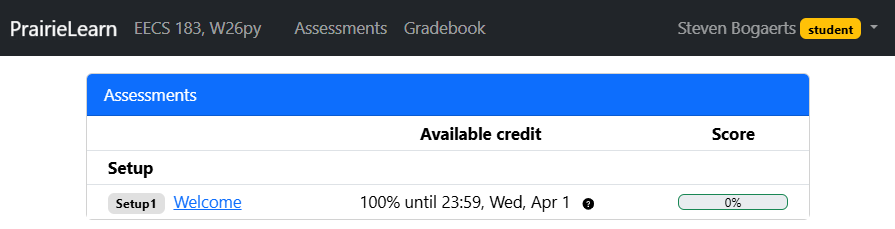
In the image, there’s just one assessment available, entitled “Welcome”. Depending on when you look, you may see other assessments available as well or instead. They’re configured to appear when needed. If you’re just setting up right now, don’t bother clicking on those assessments at this moment. You’ll work with those when you do some of the tutorials.
PrairieTest
PrairieTest is a tool that manages the use of PrairieLearn for giving exams. You’ll need to join our class in PrairieTest. To do so, follow the instructions below.
- Go to the PrairieTest site(opens in new tab).
- Do not “Sign in with Google” nor “Sign in with Microsoft”. Rather, click the “University of Michigan (umich.edu)” link towards the bottom of the alphabetical list.
- If you’re not already logged in, you may see the standard U-M login page. Log in using your U-M uniqname and password.
- If you see a U-M page titled “Information Release”, I recommend you keep selected the “Ask me again if information to be provided to this service changes” option, and click “Confirm”.
- The PrairieTest site should then show you an invitation to our class in PrairieTest. Accept the invitation.
zyBooks
zyBooks is an online platform for interactive textbooks. We have a zyBook that I’ve customized for our class. Unfortunately this tool is not free; you will need to pay on the zyBooks website for access. But it will be very useful for us, and it includes exercises that are part of your grade.
- Go to https://learn.zybooks.com/signup.
- Make an account using your @umich.edu email address.
- The zyBook code for our course is
UMICHEECS183BogaertsFall2026.
The zyBooks site requires various browser features to provide the interactive content. Sometimes people have their browser configured or have extensions installed that block such content.
Thus, if you’re having trouble accessing the zyBooks site (e.g., error when logging in, some content not appearing), try a different browser. In particular, you might try downloading and installing a brand new browser and leaving it in its default configuration.
For further assistance, please contact zyBooks support directly.
Please be certain to read the information below so that you know how to complete your zyBook assignments.
Completing zyBook Assignments
Once you’re signed up, you can access the zyBook for our course here: https://learn.zybooks.com/zybook/UMICHEECS183BogaertsFall2026.
In the zyBook we’re using for this course, a chapter corresponds to a single lecture. For example, chapter 2 corresponds to lecture 2. Within a chapter are sections. For example, section 2.1 is entitled “Programming using Python”.
Chapters must be completed by the respective due dates specified in the course calendar. Nearly all sections require completion of exercises in order to be marked “completed” in our grade book. More specifically, “participation” exercises are graded, while “challenge” exercises are optional. Should you do the challenge exercises anyway? Well, it’d be great practice! But you also have a variety of officially assigned work, so it’s ok if you skip them as long as you’re engaging with the course material in the official ways.
Some sections are labeled as optional in the zyBooks chapters. These are not required for a grade, but you may find them useful, like the challenge exercises.
While the zyBook is a great resource, please note that the included Python code doesn’t necessarily follow all of our style guidelines. In particular, it doesn’t use RME comments and doesn’t provide type annotations for parameters and return types. (If you don’t know what these things are yet, don’t worry - we’ll discuss all this soon.) Please make sure that in code you write for this course, that you always follow our style guidelines.
Refunds and Retakes
If you drop the course, you may submit a refund request to zyBooks(opens in new tab).
If you are retaking the course, zyBooks offers a free subscription for the retake. The free retake promotion is an opt-in promotion and is not automatically applied. It’s possible that if you took the course in C++, they might now deny it as a Python course. But it’s worth asking. To submit a retake discount request, send an email to support@zybooks.com. Don’t forget to include our zyBook code (UMICHEECS183BogaertsFall2026); they need that to consider your request.
Did You Just Switch from a C++ Section to a Python Section?
If you were enrolled in an EECS 183 C++ section, paid for the C++ zyBook, and are now switching to a Python section, you can request a free switch to the Python zyBook. To do so, send an email from your umich.edu email account to megan [dot] edwards [at] zybooks [dot] com with the subject “University of Michigan - EECS 183 - version switch” and body “I would like to switch from the C++ version to the Python version”.
Copyright and Intellectual Property Notice
© 2026 William Arthur and Steven Bogaerts. All rights reserved.
All materials provided for this course, including but not limited to labs, projects, notes, and starter code, are the copyrighted intellectual property of the author(s).
- Student Use: These materials are provided solely for the educational use of students currently enrolled in this course at the University of Michigan - Ann Arbor. Students may not copy, reproduce, republish, or distribute these materials (in part or in full) to any public or private platform.
- External and Instructor Use: No part of these materials may be used, adapted, or distributed by external instructors or institutions without the explicit written permission of the author(s).
To request permission to use or adapt these materials for educational purposes, please contact the author(s).