(2) Setting Up Python
Due: Tuesday, September 8
1 Installing Python
In this document I describe how to install Python on your personal computer so you can run Python programs. Please follow the instructions carefully, even if you already have a version of Python installed. The little details matter, and missing them could mean errors that need to be fixed later.
Jungeun Seo made some video walkthroughs for tutorials 1 - 3. You can find them in the Tutorial Videos folder on the Google Drive. You’re not required to watch them, but you may find them helpful in combination with the written instructions. (Note: Any URLs shown in the videos have now changed. Follow the links on this site instead.)
This course uses Python version 3.14.7 specifically, because that’s the version the autograder uses. Visit the Python 3.14.7 download page and scroll down to the Files table near the bottom of the page.
Don’t use the big yellow “Download Python” button on python.org’s main downloads page. That button always gives the newest version of Python, which is not necessarily the version we use in this course. Use the link above instead.
- In the
Filestable, clickWindows installer (64-bit)to download it. (If you know your computer has an ARM processor, such as a Snapdragon chip, chooseWindows installer (ARM64)instead. If you’re not sure, choose 64-bit.) - Open your
Downloadsfolder and double-click the file you downloaded. It should be named something likepython-3.14.7-amd64.exe. - On the first screen of the installer, check the box at the bottom that says
Add python.exe to PATH. This is an important step. - Click
Install Now. If Windows asks for permission to make changes, clickYes. - When the installation finishes, if you see an option to
Disable path length limit, click it (and clickYesif asked for permission). Then clickClose.
- In the
Filestable, clickmacOS installerto download it. Click “Allow” if Safari asks you to allow the download. - Open your
Downloadsfolder and double-click the file you downloaded. It should be named something likepython-3.14.7-macos11.pkg. - Click through the installer’s steps (“Continue”, “Agree”, “Install”, etc.), entering your Mac password if asked.
- When it finishes, a Finder window showing
Applications/Python 3.14may open. Double-clickUpdate Shell Profile.commandthere. A window will briefly open and close on its own. (If the Finder window didn’t open, you can find this folder inApplications.) - You may be asked if you want to move the Python installer to the Trash. You can agree to this.
If something goes wrong, one option is to uninstall Python (if it installed) and try again from scratch. On Windows, you can uninstall Python from the Apps & features settings. On a Mac, you can drag the Python application from the Applications folder to the Trash. If you need further help, please ask anyone on staff.
Once the installation completes, we’re ready to try it out! First, we’ll use something called a terminal.
2 What is a Terminal?
A terminal is a place where special commands can be typed as instructions for a computer. Using a terminal is not the same as programming in Python, though there can be some similarities. Visually, a terminal is just a window, often with a black background. Here’s one example, from Windows:
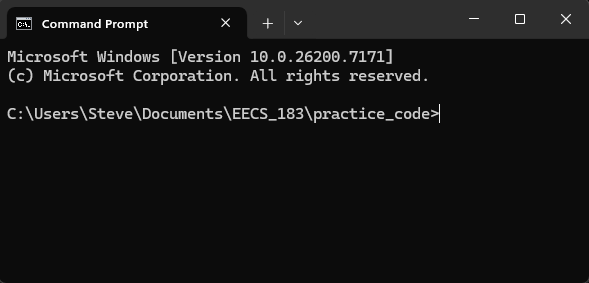
We can ignore text like that shown in the first two lines of the image above. Different text or no such text at all may appear depending on your computer.
Here’s another example, from MacOS:
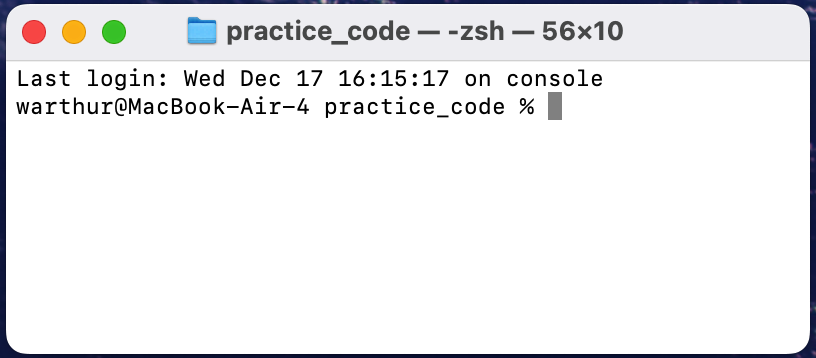
Again, we can ignore the first line of text in the image. Different text or no such text at all may appear depending on your computer.
The text C:\Users\Steve\Documents\EECS_183\practice_code> (Windows) or warthur@MacBook-Air-4 practice_code % (Mac) above is called the prompt, because it’s meant to prompt us (ask us) to type a command. When a terminal window is open, it’s always open inside of some folder; the part before the > (Windows) or % (Mac) names the folder in which the terminal is open.
On a Mac, the prompt text will look a little different. If my Mac computer is named StevesMac, and I open the terminal in the practice_code folder, then it could look like any of the following, among other similar possibilities:
StevesMac:practice_code Steve%StevesMac:~/Documents/EECS_183/practice_code Steve%StevesMac:~/Documents/EECS_183/practice_code Steve$
In the image, you can see that the cursor is just to the right of the > or % symbol. This is where we can type a command. The terminal will be an important tool for us to run our Python programs. Terminals can do so much more too, but we won’t deal with that in this course.
3 Running a Python Program in a Terminal
Navigate to your EECS_183 folder using the File Explorer (Windows) or Finder (Mac), and then expand the box below corresponding to your operating system.
Open the practice_code folder. Right-click in an open area in the folder and choose Open in Terminal. This is the easiest way to open a terminal inside of the practice_code folder.
In the window that pops up, type python hello.py and then press enter.
If you get a message that the command is not recognized or anything like that, then the easiest thing to do is to again run the installer file you downloaded. Choose the Modify option, click Next to skip the first part, and then look for a check box that says Add Python to environment variables or Add python.exe to PATH.
When you’ve done this, you should see something like the following: 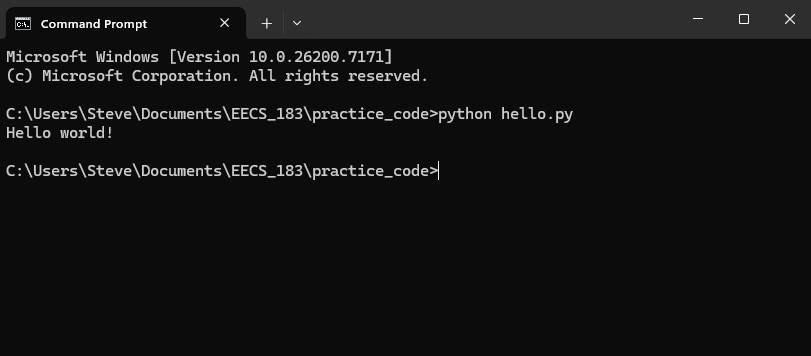 Note that the result of the program is that the message
 Hello world! appears in the terminal.
Control-click on the practice_code folder and choose New Terminal at Folder. This is the easiest way to open a terminal inside of the practice_code folder.
In the window that pops up, type python3 hello.py and then press return. Note that the result of the program is that the message Hello world! appears in the terminal.
If you get an error message that python3 is not found, it’s possible that the following will fix it. In Finder, navigate to Applications/Python 3.x and double-click the file Update Shell Profile.command. A window will briefly open and close on its own. Then try typing python3 hello.py again in the terminal.
By default, the Windows installation uses the name python, while the Mac installation uses the name python3. Please keep this in mind.
If you get an error message saying the command
python/python3is not recognized or not found, then there’s something wrong with your installation. Please try to follow the Python installation instructions above again, being careful not to skip any steps, and ask for help as needed.If you see a message about a
SyntaxError, then there’s a mistake in yourhello.pyfile. It should have exactly the following text and nothing else:print("Hello world!")
Once you’ve completed the above, you’ve run your first Python program! Usually we’ll do this in special software called VS Code, but that requires just a little more setup.
4 Copyright and Intellectual Property Notice
© 2026 Steven Bogaerts. All rights reserved.
Materials for this assignment were developed with assistance from course staff, including Jungeun Seo.
All materials provided for this course, including but not limited to labs, projects, notes, and starter code, are the copyrighted intellectual property of the author(s).
- Student Use: These materials are provided solely for the educational use of students currently enrolled in this course at the University of Michigan - Ann Arbor. Students may not copy, reproduce, republish, or distribute these materials (in part or in full) to any public or private platform.
- External and Instructor Use: No part of these materials may be used, adapted, or distributed by external instructors or institutions without the explicit written permission of the author(s).
To request permission to use or adapt these materials for educational purposes, please contact the author(s).